

My data belongs to me; that was my slogan for the last 2 years, which I used on Facebook. Now I see that others have also picked up this slogan and are engaging more with the topics of data protection and digital sovereignty. I find that good :)
I have already written about various tools I currently use on my website www.dathoschy.org .
I wrote about which addons I equip my web browsers with to put a stop to tracking by BigTech corporations.
But how do you install them? For some, it’s easy; for others, it is not.
This tutorial is intended for the latter group. This guide is not exclusively Linux-specific. Windows users can also install these addons following this guide.
What we need
I assume that you are using a browser on a PC / laptop here. However, you can also transfer everything to a smartphone or tablet.
If you do not yet have the Firefox browser, you can download it for free here: https://www.mozilla.org/de/firefox/new/
First of all: If you want this for your tablet or Android smartphone, get the alternative app store F-Droid beforehand. There you will get everything at least Google-free. You can also download the Firefox alternative Fennec there right away. It already has all of that included.
F-Droid F-Droid is an alternative app store for Android devices. All apps in this store are OpenSource, meaning the source code of the individual applications can be viewed on corresponding platforms such as GitHub.
Once Firefox is downloaded and installed, we get down to business. I will show you the settings I use; it can also go even more extreme or milder.
You can find the settings at the top right by clicking on the 3 horizontal bars, then going to Settings.
The Windows version may look slightly different than the Linux variant shown here.
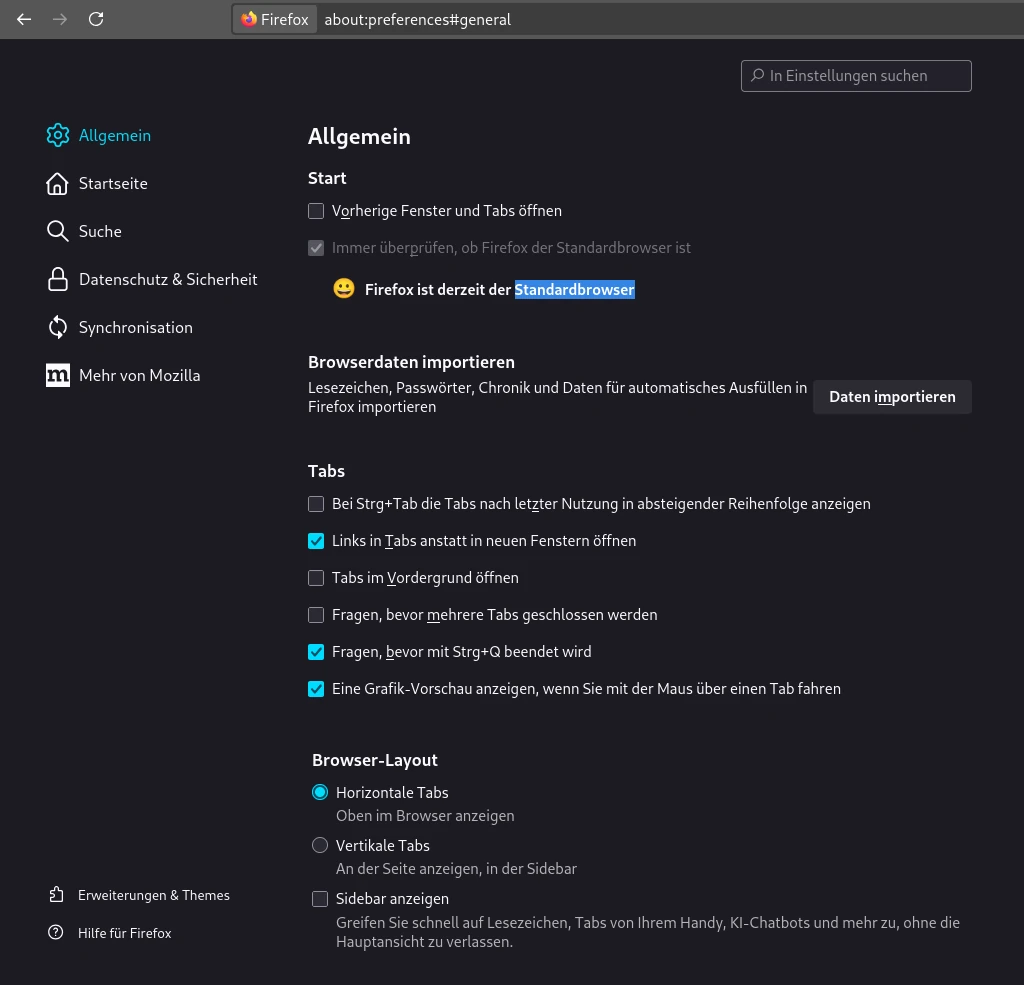 |  |
|---|---|
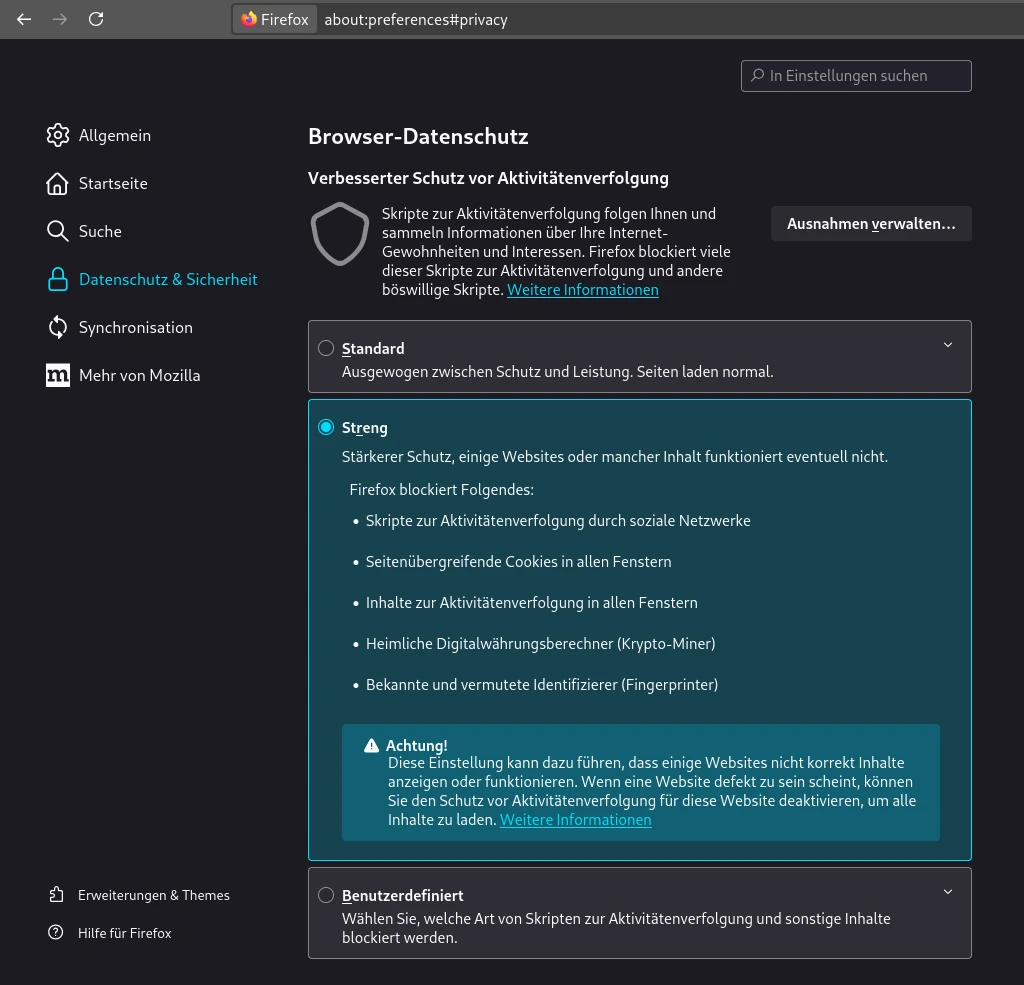
| The homepage of the settings | Privacy and Security |
Once the settings are open, we can already set Firefox as the default browser on the homepage. Then we switch to Privacy and Security.
If not set by default, we set the browser privacy here to Strict. This blocks a few things right away.
 | |
|---|---|
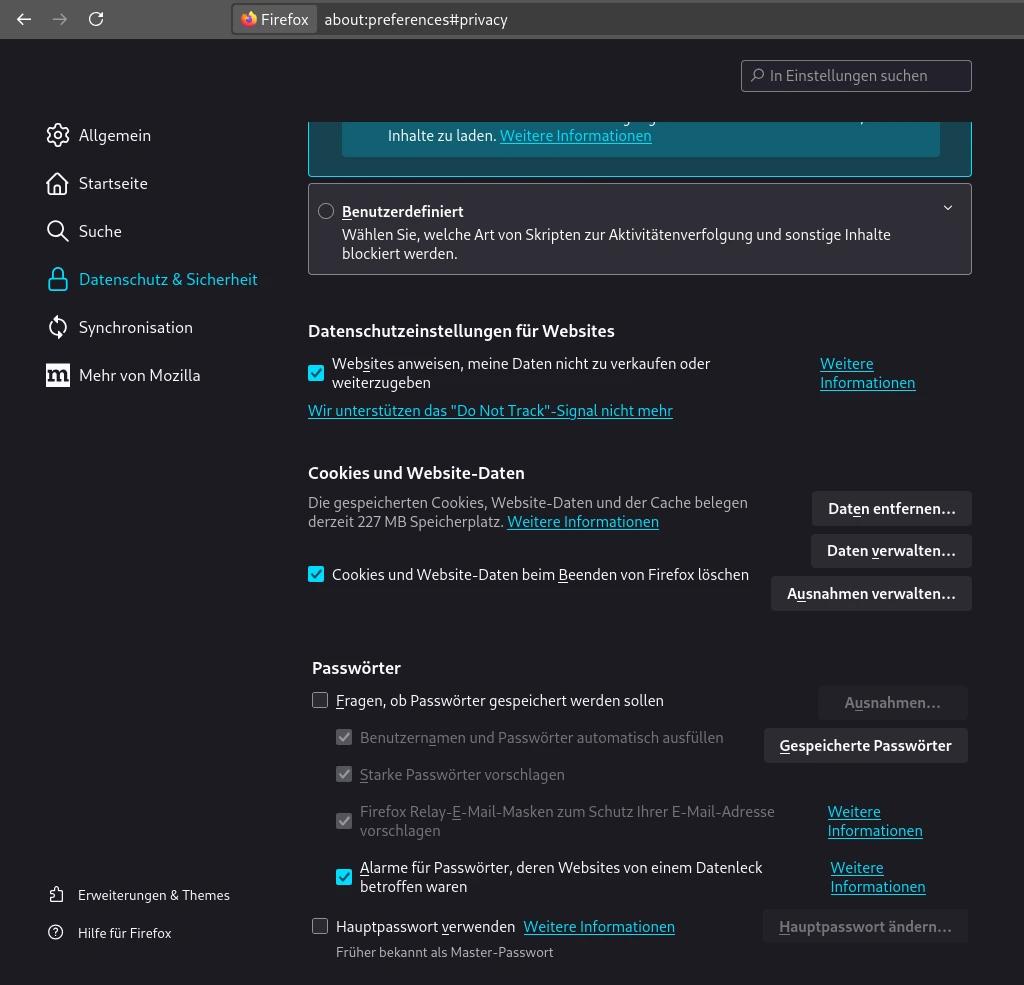
| Below that is something else where we should focus our attention |
Privacy Policies for Websites
Here we set it so that websites are not allowed to track our data, and even less so sell our data. If you want to learn more about this, you can click on the link stored in the settings. This leads to the Mozilla website.
Cookies and Website Data
I have chosen the setting here that Firefox should delete all collected cookies after closing. However, this also means that I am allowed to enter a username and password again on certain pages where I must do so every time I open the browser again and go to the corresponding page. However, exceptions can also be stored here.
Passwords
You can choose whether Firefox should save passwords. I have not activated this option because I use an extra password manager. However, you should activate the checkbox for Alerts for passwords whose websites were affected by a data leak. So far, I have not received any notification from Firefox regarding this.
One of the addons we install will help us with that.
Ad Settings for Websites
One last thing in the settings: Ad Settings for Websites
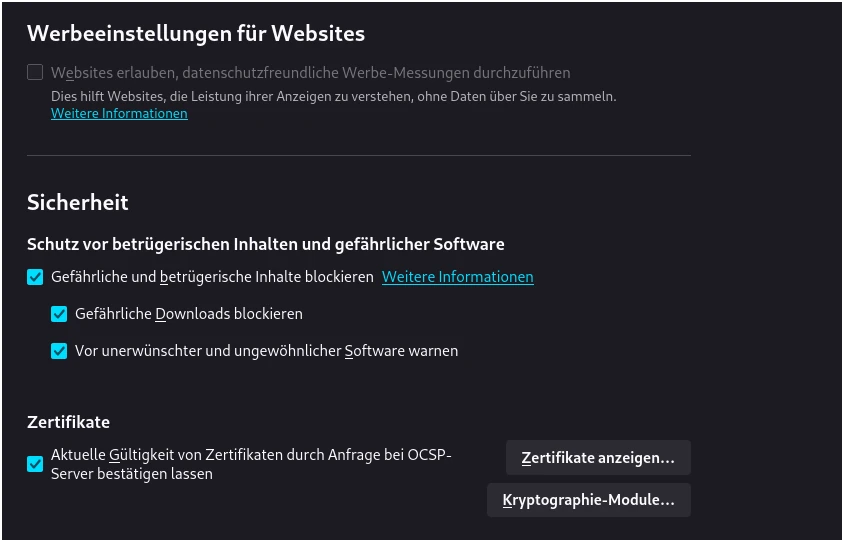 Uncheck this here. By default, this is activated and ensures that your browsing behavior on websites may be analyzed for advertising purposes. We do not want that.
Addons
Here are the 3 important addons right away:
- uBlock Origin
- Breached
- LibreRedirect
All addons can be installed directly via Firefox, so we do not have to wander around the internet for hours :D
For this, we go back to the 3 horizontal bars at the top right and select the point Add-ons and Themes.
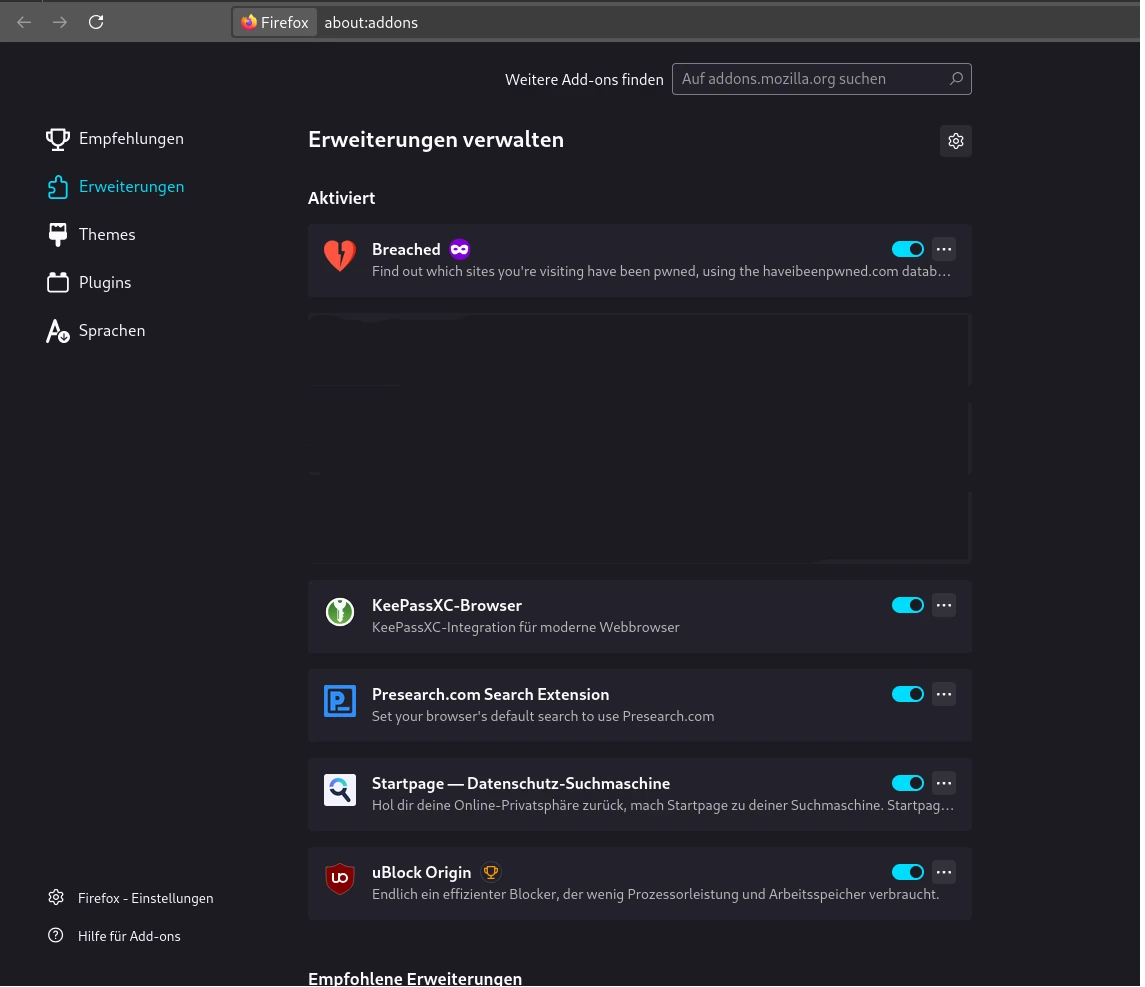
I have taken a screenshot of the addons I installed here. I have specifically hidden some operating system-specific ones so that you do not mistakenly search for them afterwards.
As you can see, there is also a search function there. We now enter the names of the addons to be installed one after another, which I have listed:
uBlock Origin is an addon that prevents website tracking. I have shown an example here of the Chinese online shop Temu, which is often taken as an example, showing how many trackers are working on their website just so you can see what would please you:
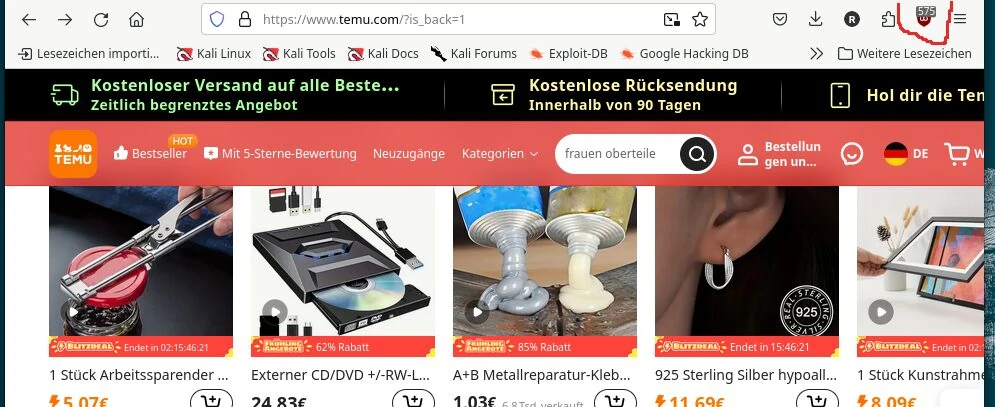 Measured within the first 2 minutes on the website, 575 trackers were found and blocked. And the more you scroll on the page, the more trackers are actively blocked. My record is at 3500 tracking tools.
The add-on prevents this tracking and informs you about how many trackers were blocked. Additionally, JavaScript is disabled on websites, which provides extra security. However, some website functions might suffer as a result.
Breached
does nothing more than inform us whether and when a website has had a data leak problem. It is actually the obligation of companies to report data leaks to the competent data protection authorities. However, this is not always done, or at least hardly anything is heard about it. As can be seen here, Meta does not necessarily inform its users if data has been stolen.
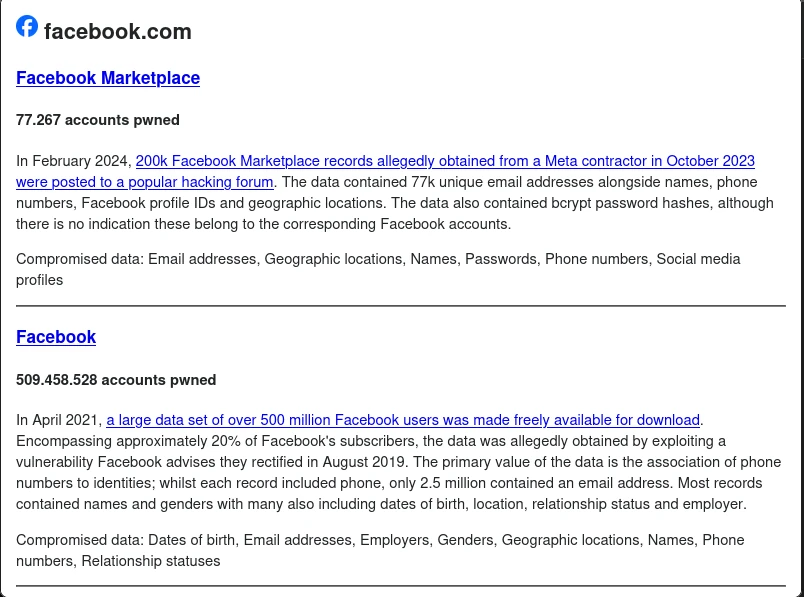
You might learn about this from news reports or corresponding podcasts :)
LibreRedirect
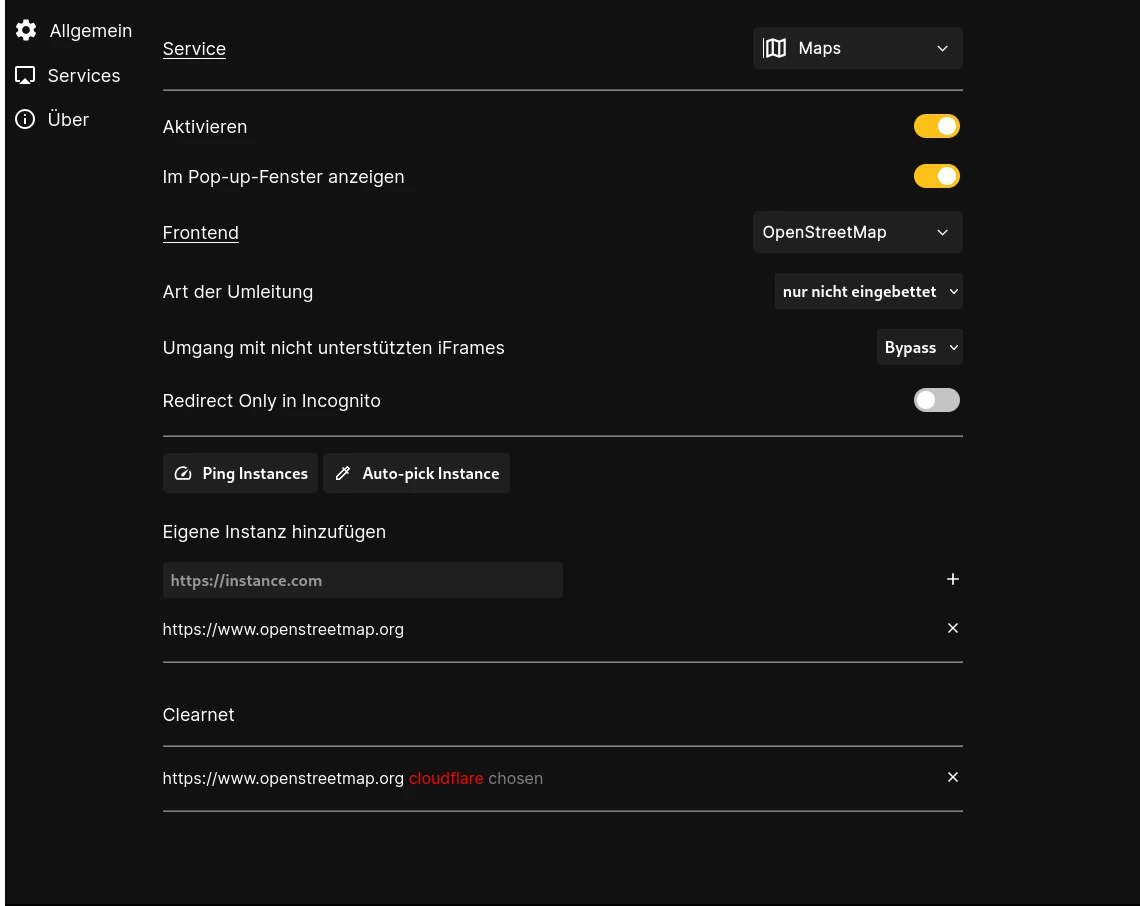
is an add-on that redirects links, such as anything showing Google results, to more privacy-friendly websites. You can configure which links should be redirected. For example, I have set it up so that all links leading to Google Maps are redirected to OpenStreetMap.
Conclusion
With the two add-ons, you have already laid a foundation to largely prevent advertising and tracking on the internet.
Of course, this is just the beginning; the end is still far off. You can do even more in this regard. However, you must want to and take action yourself. The main problem standing in the way of data protection and digital privacy is ourselves.
As you can see from the image of the add-ons I installed, I have installed several others as well.
- KeePassXC - Add-on for my password manager
- Startpage and Preesearch - Both are add-ons for privacy-friendly search engines that I use
One should never forget that one cannot prevent data collection about oneself to 100%. However, it can be restricted.
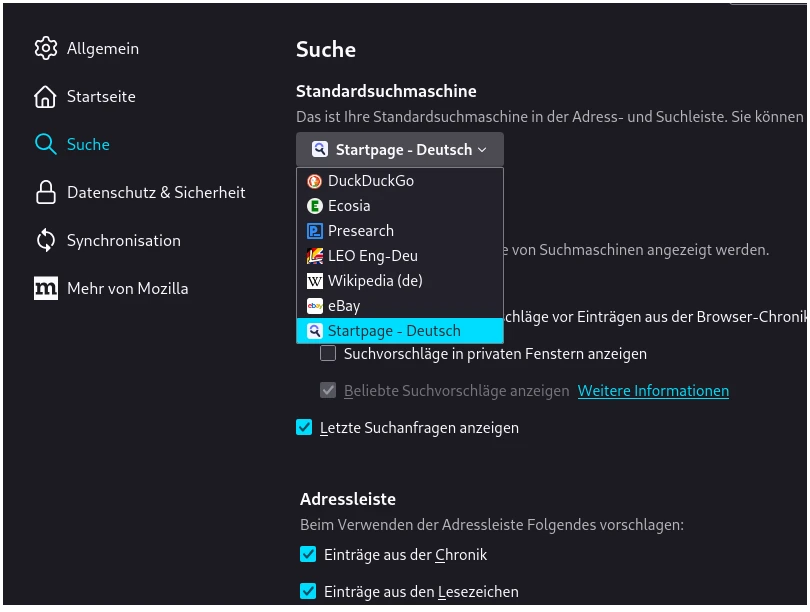
What I forgot: Changing the Search Engine
By default, Google.com is set as the search engine in Firefox. This is partly because Google pays Mozilla money to be listed as the No. 1 search engine.
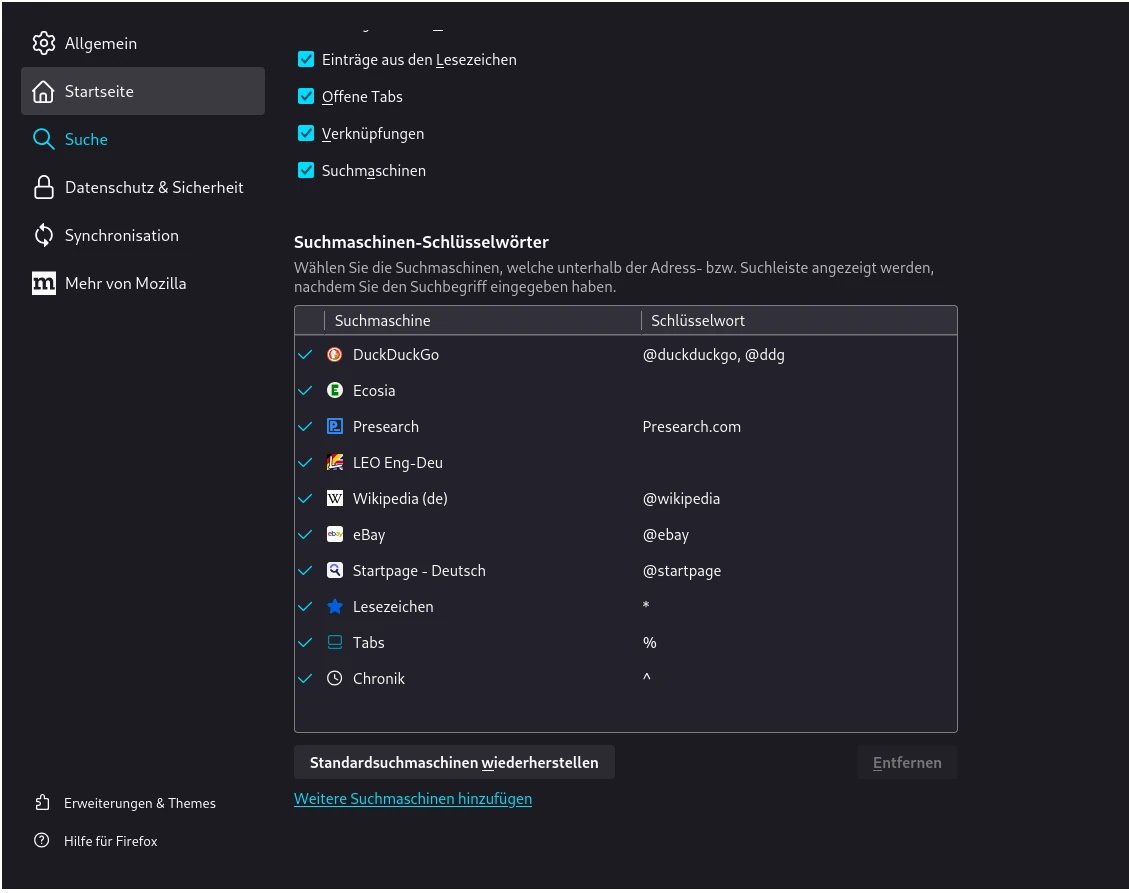
This can and should also be changed in the settings under Search:
 |  |
|---|---|
| List of active search engines | Overview of registered search engines |
New search engines are added in the overview. Old ones can be deleted here. But Warning: Gone is gone!
As you can see here, I have deleted Google and Bing. Both are search engines that like to snoop, and after which I search on the internet, they get a wet one.
I recommend saving and using Startpage and the Running Duck DuckDuckGo as search engines.