
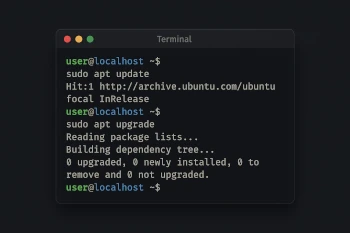
A central reason why Linux is so powerful and flexible lies in the console. While Windows switchers often shy away from a black input line, the command line opens possibilities that go far beyond what graphical interfaces can achieve.
For beginners who are just getting to know the operating system itself, it can sometimes seem strange when asking for help results in someone simply shouting commands at you. But don’t worry. Bash (so named for the console) is not magic. The more you engage with it, the easier it becomes over time.
Why the Console is Important Under Linux
Linux was developed from the ground up as a multi-user system with clear structures and toolchains. Many of these tools are native to the command line. There, small commands perform tasks very well—and can be flexibly combined. This creates immense power that is difficult to replicate with graphical interfaces alone.
Examples:
- A single command can search through all log files and display only the lines containing errors.
- With just a few characters, files can be moved or renamed—often much faster than by clicking and dragging in the file manager.
- Network or system issues can often only be traced via the console, as detailed feedback appears there.
The Problem for Switchers
New Linux users coming from the Windows world quickly encounter a hurdle here. Instead of “click me here,” they often read a command line in forums or chats—sometimes even several in a row. For many, this seems foreign, technical, and inaccessible.
The difficulties usually lie in:
- Syntax and structure are unfamiliar (e.g.,
ls -lalooks cryptic). - Linux distinguishes strictly between uppercase and lowercase letters, creating sources of error.
- Commands often return a lot of text that is hard to interpret at first glance.
Why You Should Still Learn It
Even though graphical interfaces under Linux have become very user-friendly over the years, the console remains a key tool:
- Efficiency: Recurring tasks can be scripted or solved faster with a single command.
- Documentation: Almost every help resource on the internet relies on command-line examples that are easy to copy.
- Diagnosis: Many system messages are only visible via the console.
- Future-proofing: Mastering the console makes you more independent of specific desktop environments or distributions.
A Gentle Introduction
To make the transition easier, small steps help:
- Initially, simply copy and test commands without fear of “breaking” anything (most user commands are harmless).
- Use the
manpages: Withman befehlyou get explanations directly in the system. - Focus on everyday commands like
ls(list),cd(change directory),cp(copy). - Understand that many commands work according to the Lego principle:
befehl [Option] [Datei].
Useful Commands for Beginners
| Command | Explanation |
|---|---|
ls | Lists all files and folders in the current directory. |
ls -la | Also shows hidden files (.-files) and detailed info. |
cd NAME | Changes into the specified directory. |
cd .. | Goes up one directory level. |
pwd | Shows the path of the current directory. |
cp quelle ziel | Copies a file or folder. |
mv quelle ziel | Moves or renames a file/folder. |
rm datei | Deletes a file (Caution: does not go to the trash). |
man befehl | Opens documentation for the specified command. |
sudo ... | Executes a command with administrator rights. |
These commands form the foundation for working with the console and help you get oriented in the system very quickly.
Practical Everyday Scenarios with the Console
How do I find a file quickly?
With the find command, you can search the entire system or specific directories for files:
| |
This searches in the directory /home/benutzer for a file named dokument.txt.
How can I search for text in files?
Suppose you want to search for an error in all log files. The classic is the grep command:
| |
This shows all lines in the log containing the word “Error”.
How do I update my system?
Depending on the distribution, there are different package managers; here is a typical example for Debian-based systems (e.g., Ubuntu, LMDE):
| |
apt update: Downloads the latest package lists from the internet.apt upgrade: Installs all available updates.
How can I monitor processes?
To see running programs and their resources, you use the command:
top(alternatively install btop via apt)
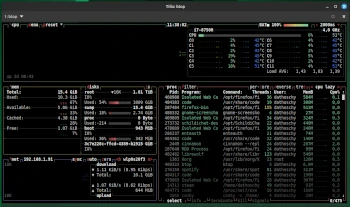 btop shows you a rough system overview
Here you see a live view of all active processes.
With a little practice, the console becomes a powerful tool that opens up new freedoms when working with Linux. The beginning may seem overwhelming, but with confidence and patience, your scope of action and enjoyment of the system will grow.
Important: Never be afraid of making mistakes – Linux commands are usually very controlled, and if in doubt, a quick internet search or asking for help in communities will assist you!
Helpful Online Resources and Communities for Troubleshooting
When problems arise, the Linux world has a large community and many resources that can help find solutions:
Stack Exchange – Unix & Linux
Here you’ll find numerous questions and answers about Linux and Unix, many with practical solutions.
https://unix.stackexchange.comLinux Forums and Communities
Popular forums like linuxquestions.org offer help for both beginners and advanced users.Distribution-Specific Forums
Many distributions have their own community forums, such as the Debian Forum, Ubuntu Forums, or the LMDE Forum. Here you’ll often find targeted assistance for your specific system.Reddit
Subreddits like r/linux and r/linuxquestions are active and provide quick advice and discussion opportunities.Official Manpages Online
Many manpages are also searchable online, for example on man7.org .Blogs and Tutorials
Many blogs, such as mine, offer practical troubleshooting tips, beginner tutorials, and step-by-step guides, often with example commands to try out.
There may also be a LUG (Linux User Group) near you. You can find help there, bring your PC or laptop along, and they’ll show you directly on your device how things work.
These resources are a valuable addition to working with the console. They help find solutions and continuously expand your own knowledge – especially for Linux newcomers who want to master the transition.