

Spam is annoying. No question about it. And not every email program is capable of protecting against spam at all. There are tools like Bogofilter or Spamassassin that act as your digital doorman and tell spam: “You’re not getting in here!”
Why You Need a Spam Filter
According to the Federal Office for Information Security (BSI), daily spam volume in October 2021 was around 30.3 million unwanted emails per day! And these are only the figures for the business sector. I cannot provide numbers for the private sector. But just take a look in your email inbox under the Spam folder of your email program or via the web interface.
In my barely used Google mailbox, about 3 spam emails land in the Spam folder per day. Plus the countless ones that aren’t filtered out. That’s another roughly 20 - 30 fluctuating. If I use my private address or the blog address instead, hardly any spam emails reach me at all nowadays.
Those who think the emails from the Saudi prince who is dying and wants to give away $5 million are funny, or that ads about my non-existent knee arthritis are also quite nice; thank you for reading this far, but this guide is then not for you. This tutorial is aimed at those who want to fight spam and only need to become active once.
Namely by setting up a doorman who also works for free.
What We Need
I assume here again that a Linux operating system is installed and configured as the basis. Those who want to use this under Windows should take a look here .
As an email client, I use Evolution, an email program that comes with Gnome.
Since I still use Debian, it must be noted that you need to adapt what is typed into the console to your package manager if you are not using a Debian-based distribution.
Since Gnome provides almost everything for us, let’s start in the console.
Let’s Go, We Tell Spam to Fight Back
First, bring the system up to date:
sudo apt update && sudo apt upgrade -y
Then we install Spamassassin:
sudo apt install spamassassin -y
Here, the package spamd may also be installed, so don’t worry, that’s supposed to happen.
Next, we copy a template into our user directory:
cp /usr/share/spamassassin/user_prefs.template ~/.spamassassin/user_prefs
The following settings establish an absolute but functional basic configuration. Spamassassin can configure much more. However, that is not part of the tutorial and is also not exactly beginner-friendly.
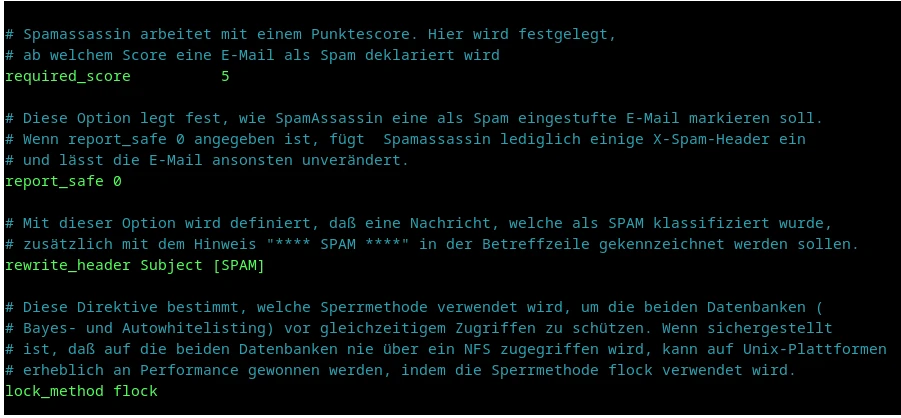 With this, we are done with the minimal basic configuration.
Time to start the service:
sudo systemctl start spamassassin-maintenance.service
If no further message appears, the part is running.
But since not everyone runs their computer 24/7 and only restarts it for kernel updates, Spamassassin should automatically start when the computer boots up. We do this with:
sudo systemctl enable spamassassin-maintenance.service
That’s it then. Spamassassin is running and now filters our spam emails out. At least almost.
Because what is still missing is a filter in your email program that lets requests be filtered through SpamAssassin as well.
Under Evolution, this is quite simple:
Go to Edit -> Message Filters. Then click on Add.
The whole thing should then look like this:
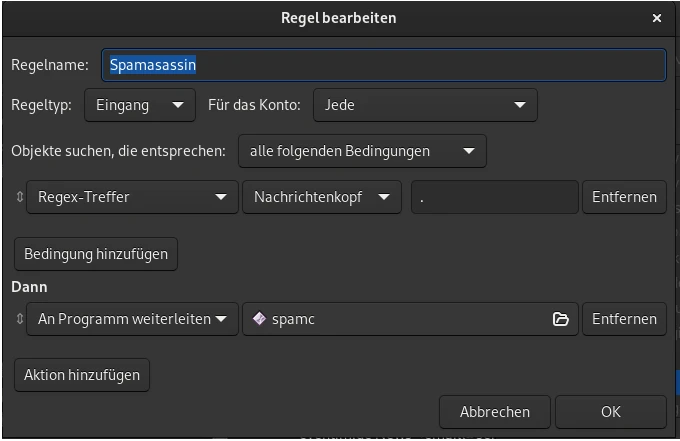
You can find spamc in /usr/bin/
Then click OK and your emails will now be filtered.
What Else Is Important
Filtering spam is a continuous task. Also for SpamAssassin. It should be clear that not every spam will be blocked immediately at the beginning. SpamAssassin is capable of learning. That means, with every new spam email it learns something. Over time, the program gets better.