
If that doesn’t matter to you, please continue reading. If not, feel free to check out other topics :D
Alright, let’s go.
What We Need
As always: The tools and procedures described here have been tested on a Debian-based distribution (currently LMDE 6 ). Therefore, they should also work on other distributions; please adjust the installation of the tools to your specific distro accordingly!
Tools and Programs:
- Existing Spotify Debian package (not the Snap version)
- Git, Make, Rust, Cargo installed
- Build-Essential packages (compiler, libc headers)
- spotify Adblocker (available on github )
- Spotify Free Account! Without one, this makes no sense.
Let’s Get Peter Moving
First, we install the Spotify repository, if it hasn’t already been done:
| |
Since we are building the adblocker from source ourselves, we need a few more things for that. Without them, nothing will work.
| |
This installs Rust & Cargo on your system. After installation, please briefly restart your terminal.
And now…. The big moment…. we build the adblocker…
To do this, we first clone and unpack the repository from git:
| |
Now comes the big moment for the first… uh… compilation.
We enter the command makefor a quick type-in.
The computer now handles the rest on its own. A series of listings will appear; once they are finished, a prompt reappears. If no errors are displayed, we can install the adblocker with sudo make install. If this also runs without errors, we proceed. We use what we just installed.
To do this, we start Spotify in the terminal with the following command (naturally only to test it first):
| |
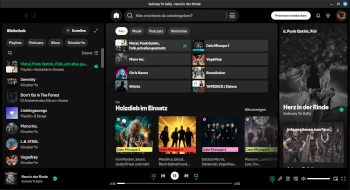
When Spotify starts, let a few songs play through to check if any ads actually appear.
Desktop Shortcut
Since I am not one of those people who keep thousands of terminals open just for programs to idle in them, we create a “desktop shortcut”.
| |
We fill this with:
| |
Save and close. Now “Spotify (adblock)” appears in the application menu.
If you want to have this on your Android smartphone as well, that is also possible, but that is a story for another time.