
Occasionally, one needs a bootable USB stick with a Live version of Linux installed. A few days ago, this was the case for me because I had incorrectly entered an external hard drive in the /etc/fstab and the system no longer wanted to boot.
In such a case, it is useful to have a USB stick with a Live version of a Linux distribution set up.
I could take the easy way here and download a tool like Rufus, download the image from the distribution’s website, and be done with the whole thing. But what if you only have a computer with no graphical interface installed? The terminal variant is quite simple. You need only one command, and the ISO will be burned onto the stick.
What do we need?
- a USB stick (32 GB should be sufficient)
- an image of your preferred Linux distribution (in my case Debian)
We plug the stick into the USB port of the computer and use
sudo lsblk -e7
to determine the USB stick.
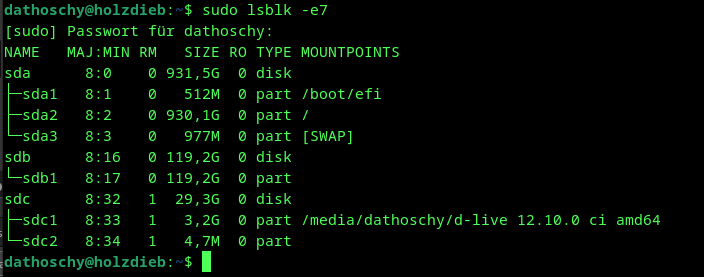
It is clearly obvious which of these entries here is the USB stick. :)
The stick is located in this case under/dev/sdc or /dev/sdc1 and /dev/sdc2 the partitions.
We now copy our ISO file onto the stick, which we can, for example, download directly from Debian .
After we have the ISO, we switch to the folder where we saved the ISO and enter the following command in the terminal:
sudo dd if=/pfad/zum/image of=/dev/sdc bs=4M status=progress conv=noerror,sync
When using
of=/dev/sdc, please make sure that it is really your stick and not any other partition. In Linux, it’s: gone is gone.
Then press Enter and off goes the wild Lutzi. The stick is ready when the prompt is visible again.
Congratulations. You have created a bootable USB stick.
Troubleshooting
If the creation takes too long, it may be due to the command itself.
sudo dd if=/pfad/zum/image of=/dev/sdc bs=4M status=progress conv=noerror,sync
Let’s break down the command:
| Command part | Meaning / Explanation |
|---|---|
sudo | Executes the command with administrator rights |
dd | The command for copying and converting files |
if=/pfad/zum/iso | Input File: the source (ISO image to copy) |
of=/dev/sdb | Output File: the target device (here the USB stick, no partition) |
bs=4M | Block Size: data is copied in 4 megabyte blocks, which is faster than small blocks |
status=progress | Shows the progress during execution |
oflag=sync | Write flag: data is written synchronously to the stick after each block, increasing the safety of writing |
If the transfer is too slow, it may be due to the stick, but it can also be due to the command. To ensure a fast transfer, you should have a USB 3 or better USB 3.1 port. The stick should also support this. It doesn’t matter whether you use USB or USB-C. I usually use USB sticks that support both (USB and USB-C)
bs=4M if you omit the M here, the data is transferred byte by byte instead of megabyte by megabyte.
Here are the transfer rates:
| USB Standard | Maximum Theoretical Data Rate | Typical Practical Transfer Rate | Note |
|---|---|---|---|
| USB 3.0 (USB 3.1 Gen 1, USB 3.2 Gen 1) | 5 Gbit/s (ca. 600 MB/s) | ca. 400–500 MB/s | Also called USB 3.1 Gen 1 or USB 3.2 Gen 1 |
| USB 3.1 Gen 2 (USB 3.2 Gen 2) | 10 Gbit/s (ca. 1.200 MB/s) | ca. 800 MB/s | Doubles the data rate compared to USB 3.0 |
Now one might think, if I have transfer rates of 400 - 500 MB/s, then I could bs= set bs=500M to achieve a higher transfer rate.
But: The specification of bs=500M with dd usually does not result in better transfer rates and can even have negative effects. Typically, block sizes in the range of a few megabytes (typically 1M to 8M) are recommended for efficient writing to USB sticks or SSDs.
Reasons:
Very large block sizes like 500 MB must be entirely stored in RAM, which consumes unnecessary RAM and may lead to slowdowns.
The hardware (Flash memory, SSD controller) works internally with smaller blocks (e.g., 4K–256K), making very large I/O blocks inefficient.
Large values can cause dd to have to load the entire block into memory before writing (buffering), which negatively affects performance.
Small to medium block sizes (e.g., 4M) create a good balance between overhead and data volume.
Summary:
- bs=500M does not result in better transfer rates, but often slows things down due to high RAM usage
- Optimal block sizes are in the range of several megabytes (typically 1M to 8M)
- Very small values like 512 bytes lead to many system calls and significantly slow things down
My recommendation therefore: bs=4M or bs=8M are usually the most sensible for USB sticks or SSDs.